If your school uses Turnitin, switch it on when you create a class task or year group deadline, then open the originality report from each submission.
Creating Deadlines with TurnItIn Enabled
TurnItIn can be enabled on both class tasks and year group deadlines. Go to the year group Calendar tab and select Add to Calendar > Add Deadline. Creating deadlines is restricted to admin users.
Year group Calendar with Add to Calendar open showing Add Deadline and Add Event.
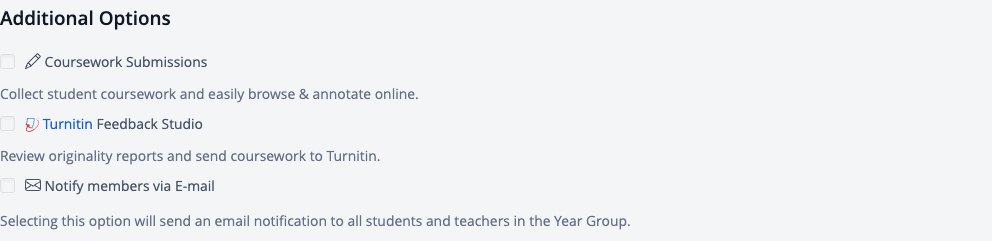
Here you can create a new Extended Essay or Theory of Knowledge deadline and tick Turnitin Feedback Studio under Additional Options. For MYP year groups, deadlines can be linked to the Personal Project. This will allow you to filter submitted coursework directly via TurnItIn. Select Add Deadline to save.
Additional Options in the Add Deadline form with Turnitin Feedback Studio.
Creating Tasks with Turnitin Enabled
Go to the class Tasks tab and select Add Task.
Tasks tab in a class with Add Task.
When creating a new assessment task with Dropbox enabled for coursework submission under Submission Type, tick "TurnItIn Feedback Studio". As students submit their files, this will automatically submit student coursework to TurnItIn and allow you to review originality reports directly on ManageBac+.
Navigate to Class > Tasks and click Add Task.
Next, open the task's Details panel and select Feedback Studio to view the Assignment Inbox and TurnItIn settings for this assignment.
Task Details panel with Submit coursework to Turnitin and Feedback Studio.
Configuring TurnItIn Settings for the Deadline or Task
Click Settings>Optional Settings to configure TurnItIn settings for this assignment. Click here for further directions on configuring Feedback Studio Assignment Settings.
Click Settings > Optional Settings to configure TurnItIn settings for this assignment.
Viewing Originality Reports
From the Assignment Inbox tab, any files submitted that are showing a similarity index will appear.
Check off students' names and click Download All or Download Selected to download the Grade Reports, Submission Lists, Original Files, Standard PDFs, or GradeMark PDFs.
Check off students' names and click Download All or Download Selected to download the Grade Reports, Submission.
Click on the Paper Title,Grade or % to view the full originality report. This will open TurnItIn in a new window (you won't have to log in separately).
Click on the Paper Title, Grade or % to view the full originality report.
Select the Match Overview button to compare the submission's originality against TurnItIn's database of papers and sources. This is also what the student sees if you allow students to view Originality Reports.