

Creating Discussions in Year Groups
via Year Groups > select Group > Discussions
Admins, Teachers, and Students can post to the Year Group discussion board via Discussions> Create Discussion or via Quick Add > Create Discussion.
Admins and Teachers can
- Post to multiple year groups at the same time
- Notify students and/or parents via email of new discussions,
- Create a private discussion only viewable for other teachers and admin.
A través de Grupo de Año > Discusiones o Añadir rápido > Crear discusión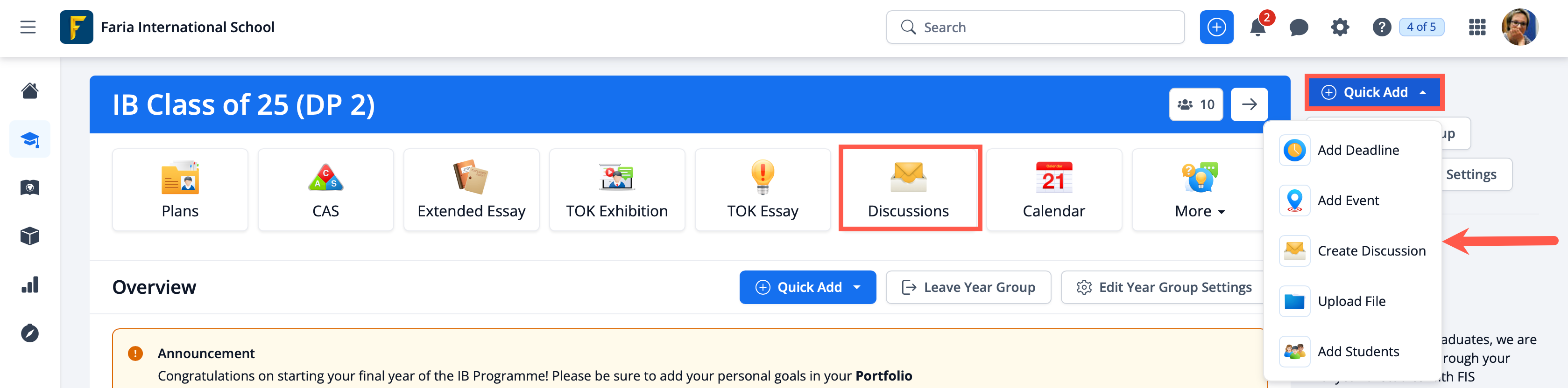
Agregue el tema, categoría, cuerpo, enlace a medios o archivos, configure las notificaciones y los permisos; una vez que haya completado sus selecciones, guarde los cambios haciendo clic en el botón "Crear discusión" al final de la página.
Creating Class Discussions
Via Classes > Discussions
You can access the Create Discussion button under the Discussion tab of your class.
- Using the Enhanced Text Editor, you can add lists, images, videos, files, tables, change text styles and switch between left to right and right to left text directions. Click the + icon for additional options.
- Selecting Notify via e-mail will send out e-mails, which will contain the message, to the class members (students and teachers) or parents.
- Selecting Private Discussion will create a discussion that is visible only to other teachers. Students will not be able to view these discussions. Selecting both options, Notify via e-mail and Private Discussion, will create a private discussion and only teachers in the current class will receive an e-mail notification.
A través de Discusiones o Añadir rápido > Crear discusión
Agregue el tema, categoría, cuerpo, enlace a medios o archivos, configure las notificaciones y permisos
Replying to Discussions
To create a reply first click <-- Comment or Open Discussion. This will bring up a text box that will allow you to enter your comment, including adding images, files or audio recording.
React to existing comments with Emojis (Thumbs Up, Heart etc), or Edit / Delete comments as an Admin. Private comments can be created by enabling the checkbox. Private comments will only be visible to other teachers. Once your comment is complete, click Comment to post it.
Haga clic en << Comentar o Abrir discusión
Haga clic en Comentar
Replying to Threaded Comments
In addition to replying to the original discussion post creator, users are able to reply to comments added from other users in the thread. Click Open Discussion, and select <<- Reply to add a reply to a particular response to the main thread. Type in the box and click Add Reply to post.
Haga clic en << Responder
Haga clic en Agregar respuesta
Private Discussions
There are two types of private discussions:
- Discussions and comments that are created by teachers and are only visible to other teachers.
- Discussions and comments that are created by students and are visible to other teachers but also to the student.
Private Discussions posted by students & teachers are only visible to teachers and are not visible to other students. Private replies left on a discussion will only be visible to teachers & not to other students.
If a Student posts a private comment, this private comment will now be visible to teachers. When a teacher responds to it the reply will also be visible only to the student. This approach allows students to create private communication threads with their teachers.
Marque Discusión privada para publicaciones o Comentario privado en respuestas
Las publicaciones aparecerán con la etiqueta Discusión privada
Student View of Discussions
Students are only able to post discussions to their assigned year group, classes or groups. Please see an example of the student view below.
- Students can Create Discussions, starting new topics
- Students can Reply to the Author, or respond to threaded replies
- Students can add Private Comments, only visible to Teachers
- Students can optionally choose to send a notification through to E-mail
Crear discusión > Vista del estudiante
Hilo de discusión > Vista del estudiante
Parent View of Discussions
Parents will have access to the discussion and attachments via Discussions on the Left-menu or on the Home Menu, and can also be notified of new discussions via email.
Parents will be able to see discussions from:
- Their Childs / Children's Year Group
- Their Childs / Children's Classes
- Their Childs / Children's Activity Groups
- The Parents Association, if the school are using this feature
Web notifications will be sent by default and can be accessed via the Envelope icon in the top-menu. For each discussion post, Teachers & Admins additionally have the option to send an email notification to push through to personal inboxes.
Haga clic en el mosaico de Discusiones o en el menú izquierdo
Creating Discussions in the Parents Association
Via Parents Association > Discussions
Via Discussions teachers and admins can view and post discussions. Parents are able to view and reply to discussions from their ManageBac+ accounts. If you wish to restrict Parent access to read-only, please Lock the Parent Association. Note that depending on the width of your screen, the button to Create Discussion may be at the bottom of the screen.